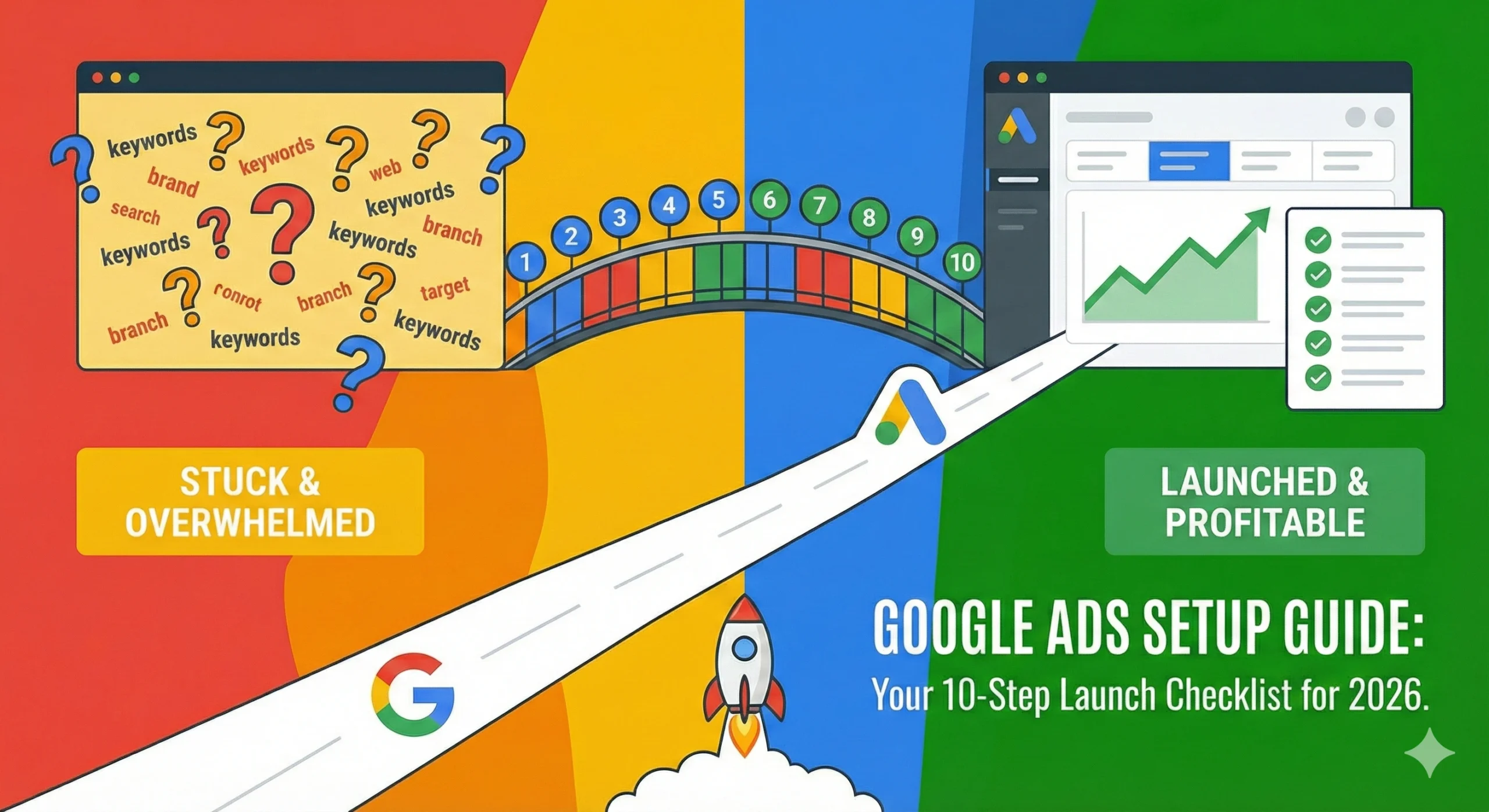
Let’s be real. Opening the Google Ads dashboard for the first time feels like sitting in the cockpit of a fighter jet.
There are hundreds of buttons. There are graphs moving everywhere. There are settings hidden inside of settings. And one wrong click can accidentally spend your entire month’s budget in a single afternoon.
It is intimidating.
But here is the secret: You don’t need to know what every single button does. You just need a proven Google Ads Setup Guide to navigate the essentials.
In 2026, Google Ads has changed. The “old school” tactics of stuffing keywords and manual bidding are dying. The new game is about feeding the AI the right data and setting the right guardrails.
If you launch without a plan, you are donating money to Google. If you launch with a plan, you are building a money-printing machine.
In this post, I am going to walk you through our agency’s internal Google Ads Setup Guide. This is the exact 10-step checklist we use to launch campaigns that convert.
Whether you are a complete beginner or looking to update your skills for 2026, this Google Ads Setup Guide will ensure you launch with confidence.
Table of Contents
The “Pre-Flight” Mindset: Search vs. Social
Before we start the Google Ads Setup Guide, we need to switch gears mentally.
If you just read our post on Meta Ads Funnels, you know that Facebook is “Push Marketing” (interrupting people).
Google Ads is “Pull Marketing.” People are actively searching for your solution. They have a problem. They are typing it into Google. They want to find you.
Your job in this Google Ads Setup Guide is simply to be there when they look. You don’t need to be as “entertaining” as you do on TikTok. You just need to be relevant.
Keep that word in mind: Relevance. It is the key to a high Quality Score and cheap clicks.
Step 1: Account Structure (Don’t Get Messy)
The first mistake most people make is dumping all their keywords into one bucket.
A proper Google Ads Setup Guide starts with organization. Think of your account like a house.
- Campaign: The House (e.g., “Sneakers”).
- Ad Group: The Rooms (e.g., “Running Shoes,” “Basketball Shoes,” “Casual Shoes”).
- Keywords: The Furniture in the rooms.
The Golden Rule: Never mix themes in an Ad Group. If you put “Running Shoes” and “High Heels” in the same Ad Group, Google will show a generic ad that matches neither.
Action Item: Open a spreadsheet. Map out your campaigns.
- Campaign 1: Brand Search (Your Company Name)
- Campaign 2: Core Service A (e.g., “Plumbing”)
- Campaign 3: Core Service B (e.g., “HVAC”)
This structure is the foundation of any successful Google Ads Setup Guide.
Step 2: Conversion Tracking (The Most Important Step)
I cannot stress this enough. If you skip this step of the Google Ads Setup Guide, do not launch.
Google’s AI (Smart Bidding) needs to know what a “win” looks like. If you don’t tell it that a “win” is a purchase or a lead form, it will just send you random traffic.
In 2026, we use “Enhanced Conversions.” This is similar to the Facebook CAPI setup. It sends hashed first-party data (like email addresses) back to Google to improve accuracy.
How to do it:
- Go to Goals > Conversions > Summary.
- Click “New Conversion Action.”
- Select “Website.”
- Enter your URL and define the goal (e.g., “Submit Lead Form” or “Purchase”).
- Install the Google Tag (gtag.js) on your site.
- Crucial: Link your Google Analytics 4 (GA4) account to import audiences.
Your Google Ads Setup Guide is useless without accurate data. Get this right first.
Step 3: Campaign Objective (Tell Google What You Want)
Click “New Campaign.” Google will ask: “What’s your objective?”
Do NOT select “Website Traffic.” I repeat: Do not select “Website Traffic” unless you are a news site selling eyeballs.
If you are a business, you want money.
- Select “Sales” (for E-commerce).
- Select “Leads” (for Service Businesses).
Why? Because this tells the Smart Bidding algorithm to hunt for buyers, not just clickers. This is a non-negotiable step in our Google Ads Setup Guide.
Step 4: Bidding Strategy (Max Clicks vs. Max Conversions)
This is where beginners get confused. “How much should I bid?”
In 2026, manual bidding is mostly dead. We let the AI handle it. But which AI strategy should you choose?
Option A: Maximize Clicks (with a Bid Limit)
- Use this if: It is a brand new account with zero history. You need traffic to “seed” the Pixel.
- Setting: Set a “Maximum CPC Bid Limit” (e.g., ₹50) so Google doesn’t go crazy and spend ₹500 on one click.
Option B: Maximize Conversions
- Use this if: You have at least 30 conversions in the last 30 days.
- Setting: Eventually, you will add a Target CPA (Cost Per Acquisition) or Target ROAS (Return on Ad Spend).
For this Google Ads Setup Guide, if you are brand new, start with Maximize Clicks to get data, then switch to Maximize Conversions after 2 weeks.
Step 5: Network Settings (The “Money Waster” Check)
This is the sneaky part where Google tries to take your money.
When you select “Search Network,” Google automatically checks two boxes:
- Include Google Search Partners
- Include Google Display Network
UNCHECK THEM BOTH. 🛑
- Search Partners: These are other random search engines. The quality is usually lower.
- Display Network: These are banner ads on random websites. They do not belong in a Search campaign. They will drain your budget with low-quality clicks.
A clean Google Ads Setup Guide focuses on pure Google Search traffic only. If you want Display ads, create a separate Display campaign later.
Step 6: Location & Language (Presence vs. Interest)
You learned this in our Meta Ads Checklist, and it applies here too.
Go to “Location Options.” By default, Google selects: “Presence or Interest: People in, regularly in, or who’ve shown interest in your targeted locations.”
The Trap: If someone in France searches for “New York Hotels,” and you are targeting New York, your ad shows up. That’s fine for hotels. But if you are a local plumber in New York, you don’t want people in France seeing your ad just because they researched New York.
The Fix: Change the setting to: “Presence: People in or regularly in your targeted locations.”
This ensures your ad spend stays local. This is a critical detail in any local business Google Ads Setup Guide.
Step 7: Keywords & Match Types (The 2026 Rules)
Keywords have changed. In the past, we used “Exact Match” (brackets like [red shoes]) for everything.
In 2026, AI is smarter. The modern Google Ads Setup Guide strategy is:
Broad Match + Smart Bidding.
- Broad Match: Allows Google to find related searches you didn’t think of.
- Smart Bidding: Ensures you only pay if that related search is likely to convert.
However, if you are just starting and have a small budget, stick to “Phrase Match” (quotes like “red shoes”). This keeps it safer.
The “Negative Keyword” List: You must build a Negative Keyword list. These are words you don’t want to show for.
- Free
- Cheap
- DIY
- Course
- Job
- Salary
Add these immediately. A robust Negative Keyword list is the shield that protects your Google Ads setup Guide from failure.
Step 8: Writing Your Ads (RSAs and Ad Strength)
Gone are the days of writing one static text ad. Now, we use Responsive Search Ads (RSAs).
You give Google:
- 15 Headlines
- 4 Descriptions
Google mixes and matches them to find the winning combination.
Tips for a High “Ad Strength” Score:
- Include Keywords: Put your main keyword in Headline 1.
- Focus on Benefits: Don’t just say “Plumber.” Say “Fixed in 1 Hour or It’s Free.”
- Use a Call to Action: “Book Now,” “Get Quote,” “Shop Sale.”
Pinning: If there is a headline that must show (like your brand name or a disclaimer), use the “Pin” feature to lock it in position 1 or 2.
Your Google Ads Setup Guide success depends on great copy. Don’t be boring.
Step 9: Assets & Extensions (Take Up Space)
Have you ever seen an ad that looks huge? It has phone numbers, links to other pages, pricing, and even images?
Those are Assets (formerly called Extensions). And guess what? They are free.
Using assets increases your Click-Through Rate (CTR) because you are taking up more real estate on the screen.
Essential Assets for your Google Ads Setup Guide:
- Sitelinks: Links to “Contact Us,” “About,” or specific product categories.
- Callouts: Short phrases like “24/7 Support,” “Free Shipping,” “5-Star Rated.”
- Structured Snippets: Lists like “Services: HVAC, Plumbing, Electrical.”
- Image Assets: Yes, you can now show a small square image next to your text ad. Do this! It makes your ad pop.
If you skip assets, your ad looks small and weak. A pro-level Google Ads Setup Guide maximizes every inch of screen space.
Step 10: The Final Review & Budget Check
You are almost there.
Before you hit “Publish,” do one final sweep of your Google Ads Setup Guide checklist:
- Daily Budget: Did you type ₹500 or ₹5,000? Check the zeros!
- Start Date: Do you want it to start today, or schedule it for Monday morning?
- Devices: Are you targeting Mobile and Desktop? (Usually yes).
- URL Check: Click your ads. Do they go to the right landing page?
Once you are sure, hit the blue button. Publish.
For Official Google News, keep regular visits on : Google
Conclusion: Launch, Learn, Optimize
Congratulations! You have successfully navigated the cockpit. Your campaign is live.
But remember, a Google Ads Setup Guide is just the beginning. The real work starts now.
For the next 14 days, don’t touch it too much. Let the learning phase happen. After 2 weeks, look at the data.
- Which keywords are wasting money? (Add them to Negatives).
- Which ads have a low CTR? (Rewrite the headlines).
- Which devices are converting? (Adjust bids).
Google Ads is not a “set it and forget it” machine. It is a garden. You have to water it and pull the weeds.
If you followed this Google Ads Setup Guide, you have planted the seeds in the best possible soil. Now, go watch them grow.